Tips

Get more out of your Wsla page

Small tricks to make your link-in-bio look sharper, load faster, and convert better. Toggle between English and Arabic.

Custom Background Color or Gradient

In the Admin Look Settings, choose between a solid color or a gradient background to match your brand’s style. Adjust direction and blend tones for a unique, polished look that makes your Wsla page visually stand out.

Quickly Visit Live Page

You can instantly preview your Wsla live page by clicking (or tapping) your username in the admin navigation bar. It’s the fastest way to see how your profile looks and functions in real time without leaving the dashboard.

Add Link Subtitles

In the Admin Link Settings, you can add a subtitle under each link — use it to show the URL, add short descriptions, or write custom text.

Custom Background Color

Find the perfect background color for your page using the color picker, or enter a any hex code for a precise custom color.

Custom Background Image

In the Admin Look Settings, you can upload your own background image to personalize your Wsla page. Use photos, patterns, or branded visuals to match your style — creating a distinct atmosphere that reflects your identity or content theme.

Custom Background Gradient

From the Admin Look Settings, create a gradient background by blending two or more colors. You can adjust the gradient’s direction — vertical or horizontal — to match your style and give your Wsla page a modern, polished feel.

Contact Links

In the Smart Links, you can add contact buttons like Email, SMS, Phone, or WhatsApp using Smart Links. Just enter your phone number or email, and it will work natively on visitors’ devices — letting them reach you instantly with one tap.

Hide YouTube or Vimeo Title and Icon

From the Admin Youtube Link Settings, you can choose to hide the title and icon of your YouTube or Vimeo video links.

Animated Profile Picture

In the Admin Look Settings, you can upload an animated GIF as your profile picture.

Add Space Between Links

You can insert Spacers between links from the Admin Links Settings to create blank sections keep the text empty. This helps separate content, group similar links, or improve readability — giving your Wsla page a clean, organized layout.

Embed YouTube Playlist

To display your YouTube playlist on your Wsla page, simply paste the playlist URL instead of a single video link. Wsla will automatically embed the full playlist so visitors can watch all your videos directly from your profile.

Verification Badge

The Verification Badge adds a check mark to your profile — showing visitors that your Wsla page is authentic and trusted. It’s a mark of credibility that helps you stand out professionally.

Link Search

If your Wsla page includes many links, enable Link Search from the Settings tab to help visitors quickly find what they’re looking for. This adds a simple search bar at the top of your page — and you can turn it off anytime if you prefer a cleaner look.

White Label Your Page

You can white label your page by hiding the wsla.to branding from the bottom. While on the Professional Plan, simply switch the Branding toggle off from the Settings section in the Admin.

Adding a Collaborator

Adding a user as a collaborator to a page allows them to edit and view its analytics. From the Account page you can send add collaborator to your page via email when you're on the Pro Plan or above.

Scheduling Links

Schedule your links to display or be hidden at a certain date and time. This feature is perfect for music releases, ticket sales, limited time offers and more.

Page Indexing

New pages are automatically submitted to search engines for indexing on a daily basis to increase their visibility. If you would prefer your wsla.to page to not be indexed or show up in search results, simply contact support and this option can be set for you.

Archiving Links

Hide links from your page without deleting them by archiving them

Download QR Code

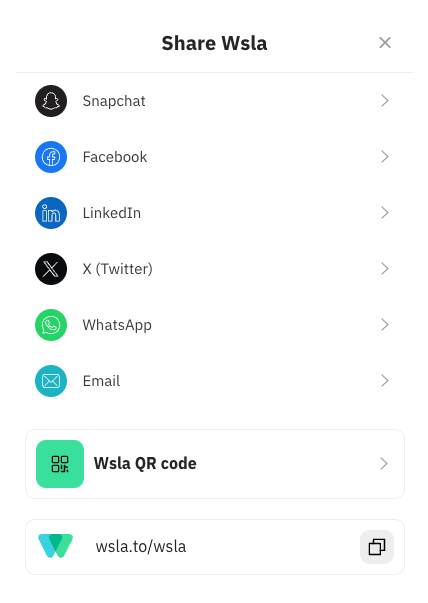
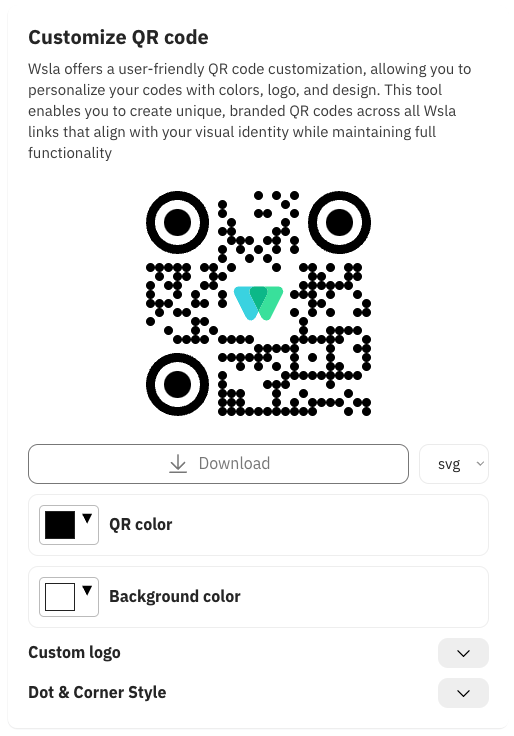
From the Share icon at the top right of the Admin Editor, you can generate and download a QR code for any Wsla page. Print it on business cards, flyers, menus, or packaging — turning real-world moments into instant visits to your profile.

Contact Card Website

Include your Wsla link as the website on your contact card so anyone you share it with always sees your latest links and updates. It’s a smart way to keep your info current — no more sending new links every time something changes.

Copy Links

Under Smart Links, you can add Copy Link — when visitors click it, the text you’ve set (like a coupon code, IBAN, or referral link) is copied instantly. It’s a simple, fast way to share important info without manual typing.

Add to the Home Screen

Add to the Home Screen

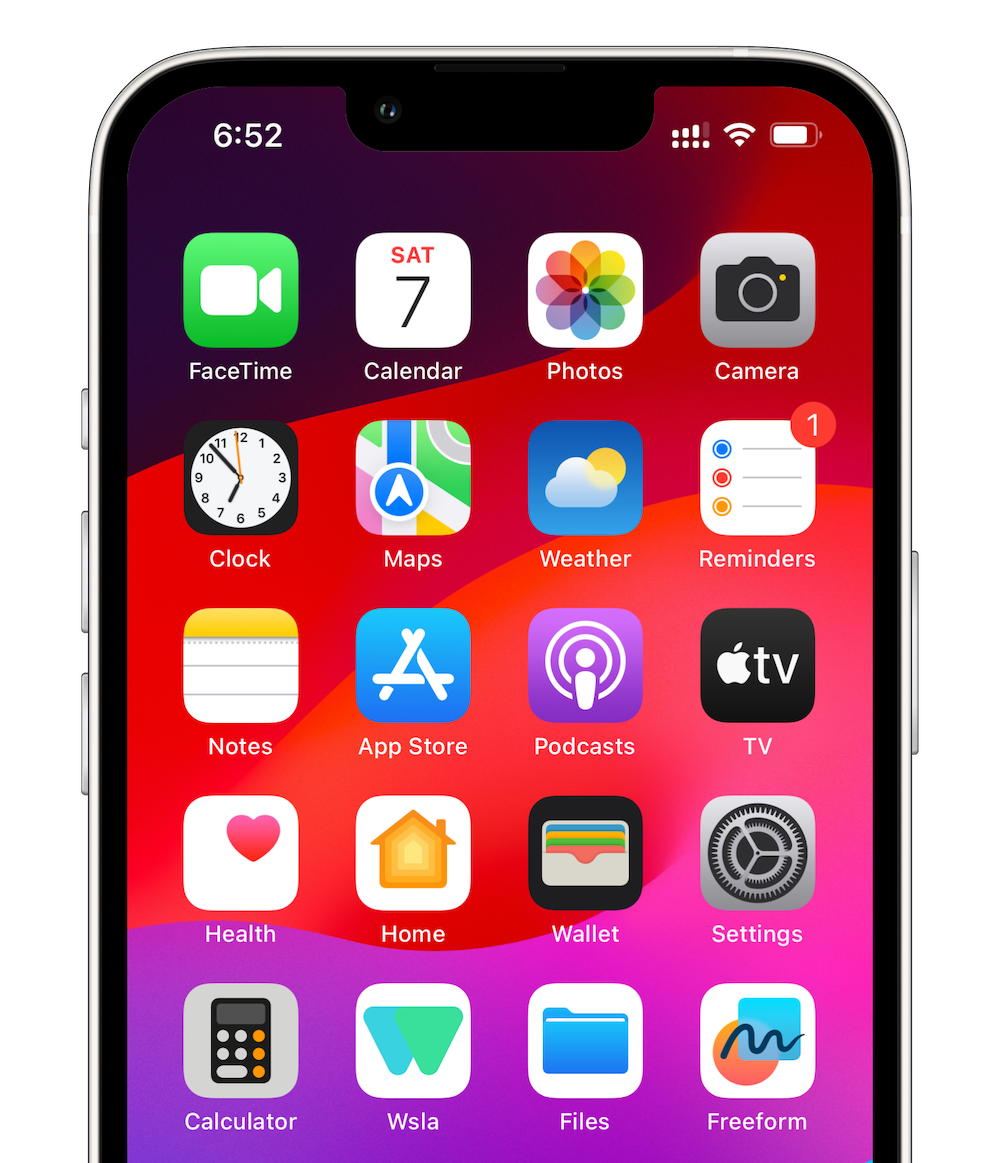
When you add your Wsla profile to your phone’s Home Screen, it appears with your profile picture or logo — just like a real app icon.

Customize Animated Backgrounds

In the Admin Look Settings, you can personalize animated backgrounds by uploading a transparent image or animation and setting a custom background color behind it. This lets your visuals blend perfectly with your brand palette while keeping your Wsla page dynamic and stylish.

Profile Picture Options

Customize how your profile image appears on your Wsla page. From the Admin look Settings, select between Circle, Square, Drop, or Hero layouts — each giving your profile a distinct personality and visual flow that fits your brand’s vibe.

Meta Pixel in Wsla

Add your Meta Pixel in the Admin Settings of Wsla to track how visitors interact with your links and profile.

Rich Text

Use rich text to format your descriptions with bold, italic, links, or color highlights. This helps you emphasize key points, add style, and make your profile look more polished.

Animated Link Buttons

Animated Link Buttons

Use animated buttons on your Wsla profile to catch your visitors’ attention and increase interaction. Motion subtly guides the eye to your most important links — like new releases, offers, or featured videos.

Share Your Wsla Page

Share Your Wsla Page

Use the Share button at the top right of your Wsla page to quickly share your profile. The popup lets you copy your page link or download its unique QR code — perfect for sharing across social media, print, or anywhere your audience is.

Use Custom Fonts

Use Custom Fonts

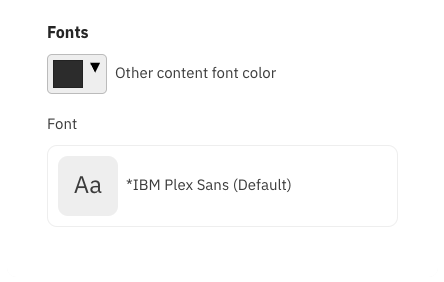
Choose from a wide range of custom fonts in the Admin Look to give your Wsla page its unique look. All fonts are optimized for both Arabic and international scripts — ensuring your text looks beautiful and readable across every language and device.

Customize Your QR

Customize Your QR

From the Admin Settings, personalize your Wsla QR code by changing its colors, background, and dot styles — even add your logo or an animated version. It’s perfect for packaging, posters, or business cards, helping your brand stand out anywhere it’s shared.

Multiple Wsla Profiles

Multiple Wsla Profiles

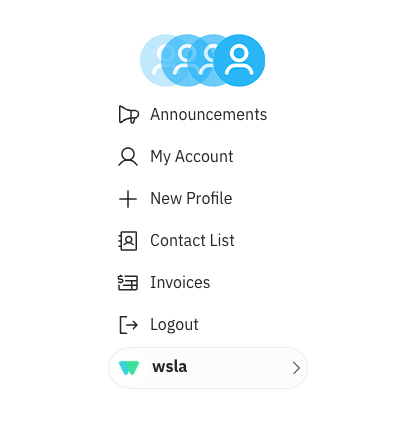
Easily create and switch between multiple profiles from the sidebar on desktop or the Settings section on mobile. Whether you manage personal, business, or client pages, Wsla lets you control them all under a single account — simple and organized.

Connect Google Analytics

Connect Google Analytics

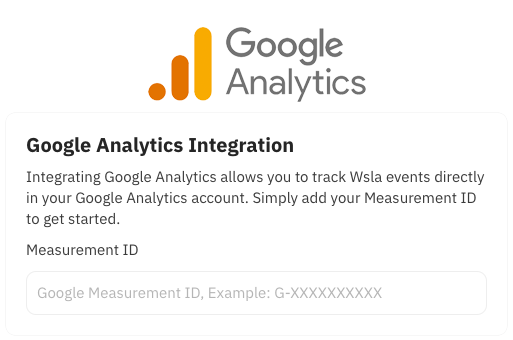
Add your Google Analytics ID in the Admin Settings to monitor visits, clicks, and user behavior on your Wsla page. This integration gives you deeper insights into what drives engagement, helping you optimize your content and grow your audience

Add a Custom Header Banner

Add a Custom Header Banner

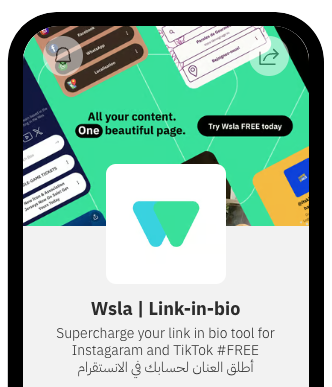
Upload a custom header banner from the Admin Look to give your Wsla page a unique identity.

Group Links into List or Grid

Group Links into List or Grid

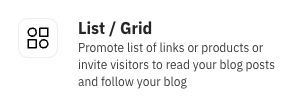
Use the List & Grid Links feature in your Wsla admin to group related links under clean, collapsible sections.

Create Short URLs for Every Link

Create Short URLs for Every Link

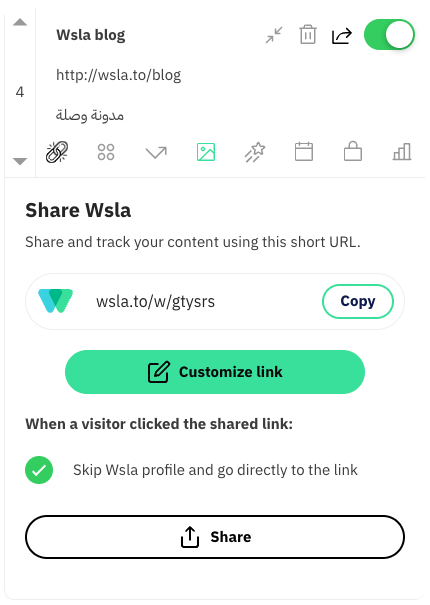
Generate short, clean URLs for your Wsla links directly from the Admin Links (Link settings). Short links make your content easier to share, track, and manage — while keeping your brand consistent.